Introduction
In today’s fast-paced business world, organizations can’t afford to wait months for traditional software development. That’s where Microsoft Power Apps comes in — a low-code platform that empowers businesses to quickly build custom apps, streamline workflows, and solve unique problems without heavy coding.
If you’re just getting started with Power Apps, this guide will walk you through the basics and show you how easy it is to build your first app.
What is Power Apps?
Microsoft Power Apps is part of the Power Platform, designed to help users create applications with minimal coding. There are two main types of apps:
- Canvas Apps – Build apps by dragging and dropping elements onto a blank canvas, much like creating a PowerPoint presentation.
- Model-Driven Apps – Built on top of Microsoft Dataverse, these apps focus on data and business logic, automatically generating UI based on your data model.
Both options allow businesses to tailor apps to their unique processes — whether that’s tracking expenses, managing inventory, or automating HR requests.
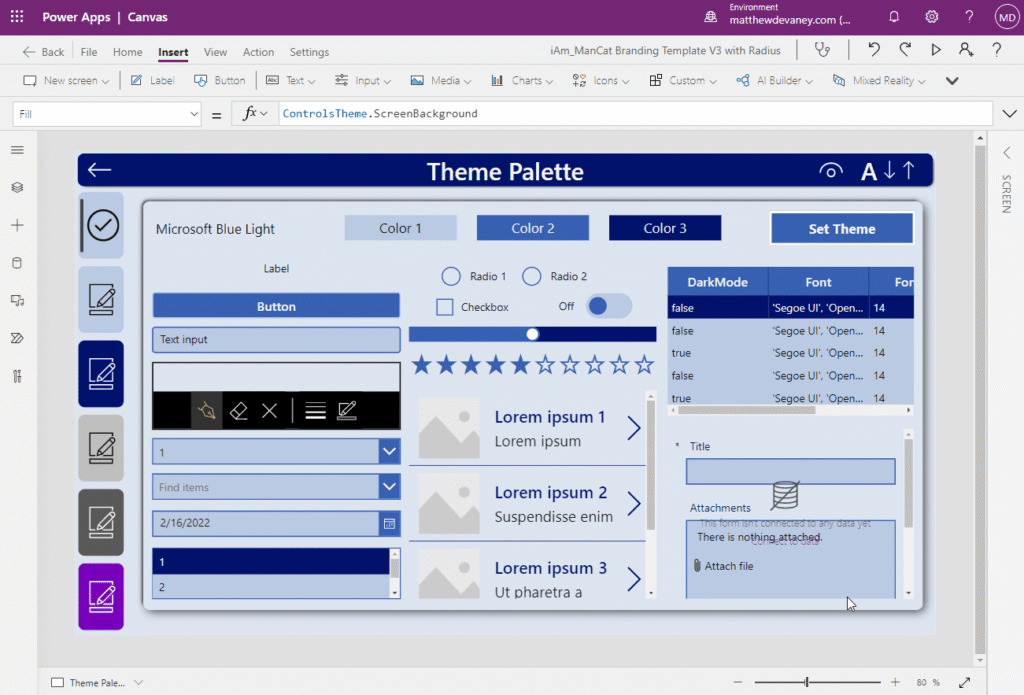
Step-by-Step Example: Build an Expense Tracker
Let’s look at a simple use case — creating an Expense Tracker in Power Apps.
Step 1: Open Power Apps Studio
- Go to make.powerapps.com.
- Sign in with your Microsoft 365 account.
Step 2: Start a New Canvas App
- Click Create → Canvas app from blank.
- Choose Tablet or Phone layout.
Step 3: Add a Data Source
- Connect your app to SharePoint, Excel, or Dataverse.
- Example: An Excel file with “Expense, Amount, Date” columns.
Step 4: Design the UI
- Add text input fields for expense name and amount.
- Add a date picker for the date.
- Insert a “Submit” button.
Step 5: Add Functionality
- Use a simple formula like:
Patch(Expenses, Defaults(Expenses), {Title: txtExpense.Text, Amount: Value(txtAmount.Text), Date: dtExpense.SelectedDate}) - This saves the data into your connected data source.
Step 6: Test & Publish
- Preview your app with Play mode.
- Once satisfied, click Publish and share with your team.
Best Practices for Power Apps
To get the most out of Power Apps, keep these best practices in mind:
- Keep UI simple – Avoid clutter for better user experience.
- Use Dataverse when possible – For secure, scalable data storage.
- Test with real users – Gather feedback before wide rollout.
- Secure your app – Use role-based access to control who sees what.
Conclusion
Microsoft Power Apps empowers anyone — from business users to IT professionals — to build apps that solve real problems, fast. Whether it’s automating HR requests, managing expenses, or tracking customer feedback, Power Apps gives businesses a competitive edge.
👉 Want to take your Power Apps journey further? At Zentrya Solutions, we specialize in designing, deploying, and scaling Power Platform solutions that deliver real results. Contact us today to discuss how we can help your business innovate.