👋 Hey Power Platform enthusiasts! As part of my 30-Day Power Platform Integration Challenge, I’m diving deep into real-world integration scenarios that clients face every day.
Today, we’re starting strong with a practical, common challenge: how to connect on-prem SQL to Power Apps. We’ll walk through linking your on-premises database directly to a Canvas App.
Why This Matters
Many organizations still rely on on-prem SQL databases for critical business data. With Power Apps, you can build modern low-code applications that access that same on-prem data securely, without migrating to the cloud.
By the end of this article, you’ll be able to:
- Connect your Canvas App to an on-prem SQL Server using a data gateway.
- Read and write data securely from within Power Apps.
- Test, publish, and share the app with your team.
🧰Prerequisites Checklist
Make sure you have:
- A running SQL Server instance (on-premises)
- A table with sample data for testing (e.g., Employees)
- Power Apps environment (Developer or Production)
- On-premises data gateway installed on the same network as SQL
- A Power Apps license or trial enabled
⚙️ Step 1 Prepare Your SQL Server
- Confirm SQL Server is accessible from the machine that will host the gateway.
- Note the following details:
- Server Name
- Database Name
- Authentication Type (Windows/SQL)
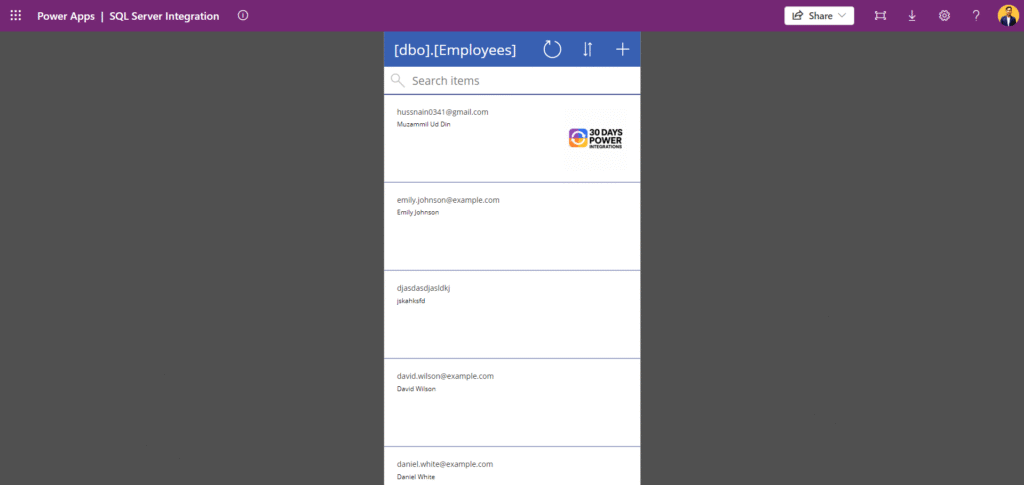
🔐 Step 1.1 Create a SQL Server Authentication Login
- Open SQL Server Management Studio (SSMS).
- Expand Security → Logins → Right-click → New Login.
- Select SQL Server Authentication.
- Enter a username and password (for example, PowerAppsUser).
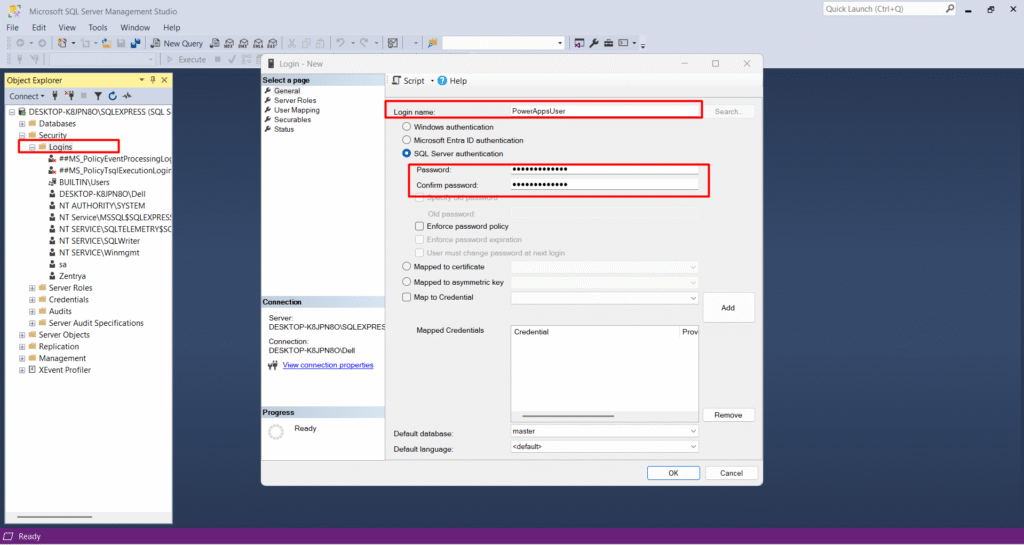
5. In the User Mapping section, select your target database and grant at least
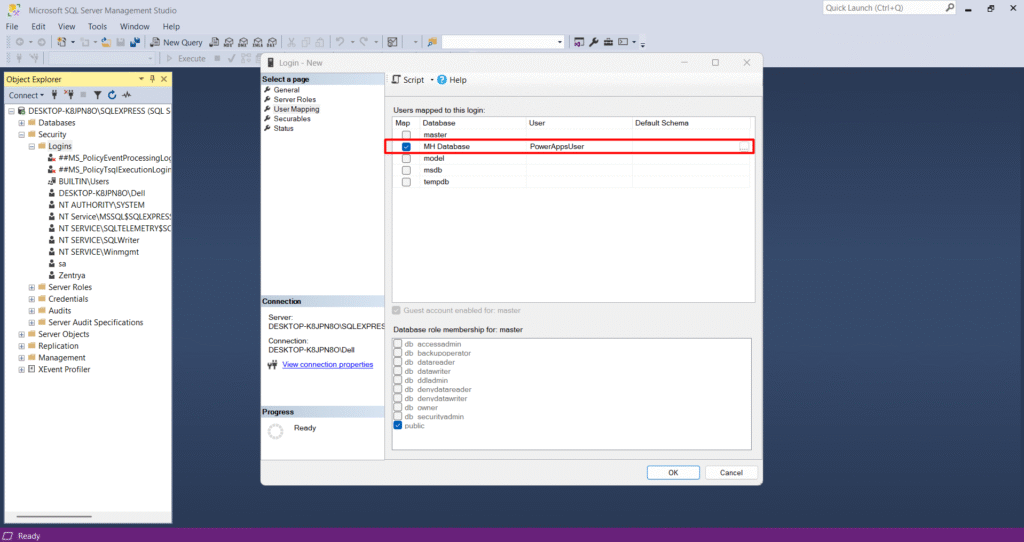
6. Under Database role membership, check:
- db_datareader
- db_datawriter
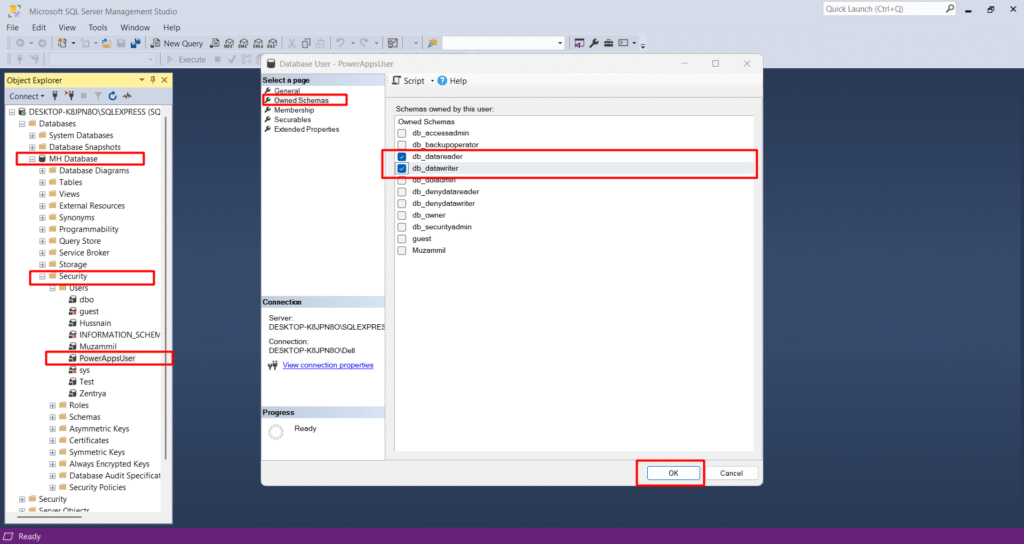
7. Click OK to save.
💡 Note: For Power Apps SQL connections, db_datareader and db_datawriter permissions are usually sufficient and safer than assigning higher-level roles like db_owner or sysadmin.
🌉 Step 2 Install and Configure On-Premises Data Gateway
- Download the gateway from: https://www.microsoft.com/en-us/download/details.aspx?id=53127
- Install it on a machine that’s always on and connected to your SQL Server.
- Sign in with your work or school account (same tenant as Power Apps).
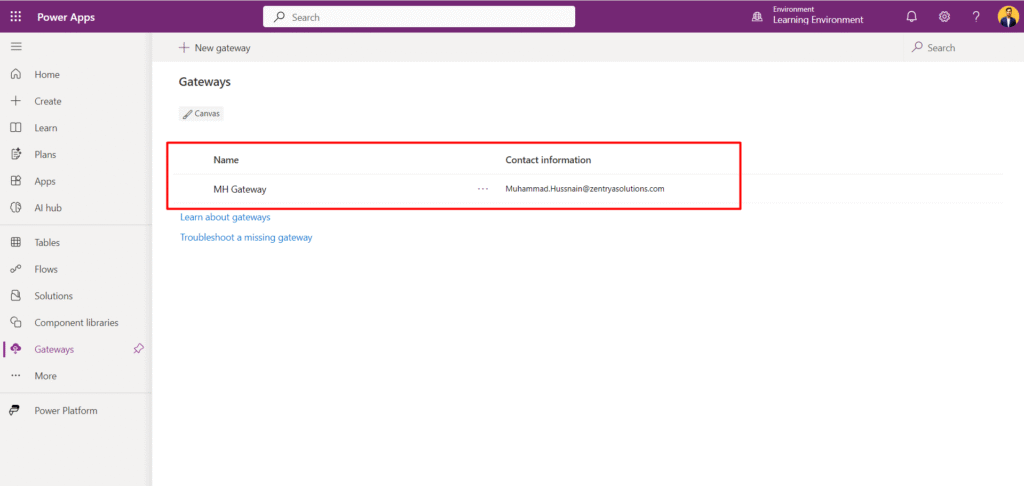
- Register the gateway with a clear name like “FinanceGateway”.
- Once installed, open Power Platform > Gateways to confirm.
🔗 Step 3 — Create a SQL Connection in Power Apps
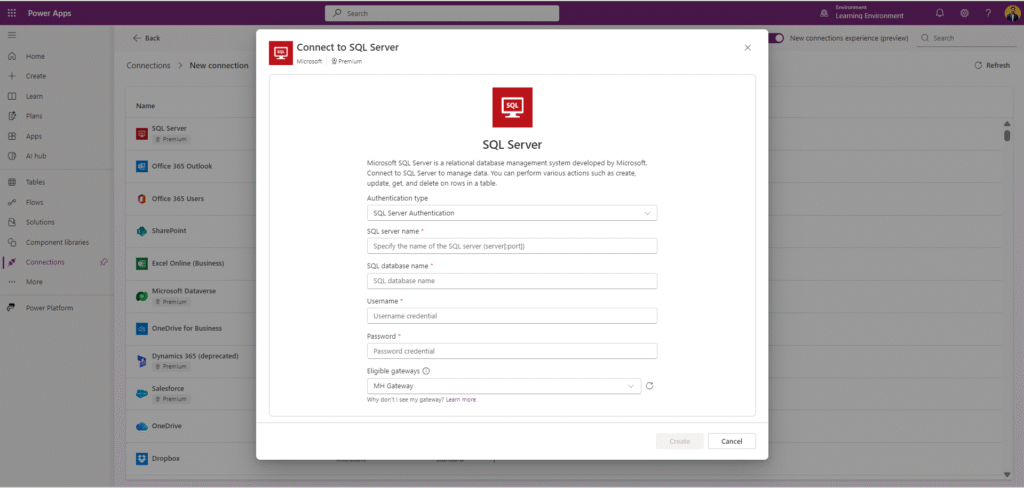
- Go to make.powerapps.com > Connections > New Connection
- Select SQL Server
- Enter details:
- Provide SQL credentials or use Windows authentication.
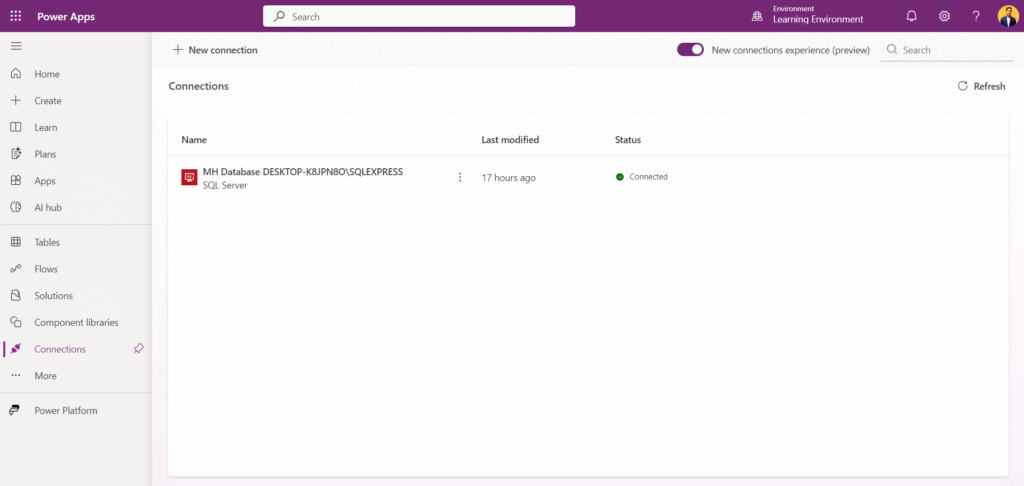
- Test the connection it should show ✅ Connected via gateway.
🧱 Step 4 Build Your Canvas App
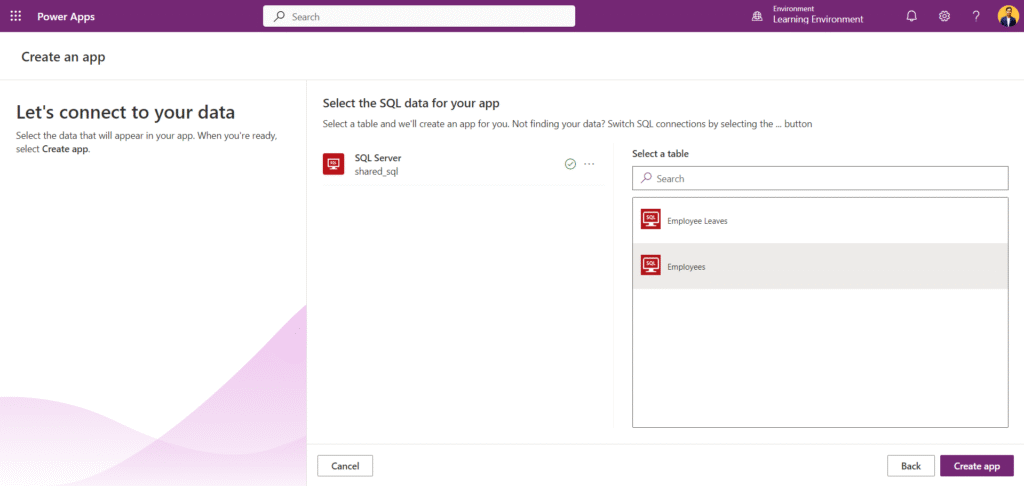
- From Power Apps Home, click Start with an app Template > SQL Server
- Choose your newly created connection and table.
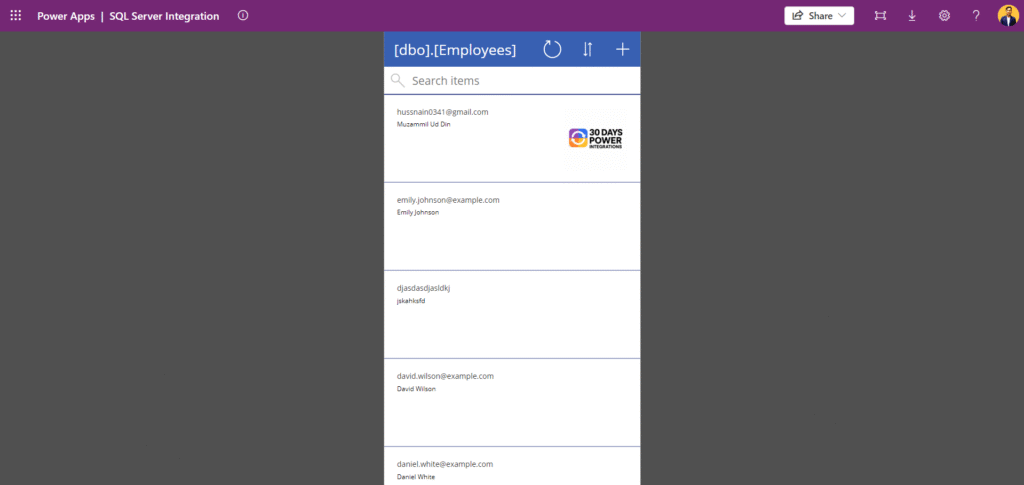
- Power Apps automatically generates a 3-screen app (Browse, Detail, Edit).
- Run the app you’ll see your on-prem SQL data instantly!
🧪 Step 5 Test and Validate
- ✅ Create a new record → verify it appears in SQL Server
- ✅ Edit an existing record → check data updates
- ✅ Delete a record → confirm removal from the table
💡 Tip: If data doesn’t refresh immediately, use Refresh(DataSource) or the refresh icon in your app.
🛠️ Step 6 Troubleshooting Common Issues
Here are a few common issues you might face during integration — and how to fix them:
❌ Gateway Offline: If your gateway shows as offline, your machine might be in sleep mode or a firewall may be blocking port 443. 👉 Fix: Keep the machine awake and ensure outbound port 443 is open.
❌ Can’t Connect to SQL: This usually happens due to an incorrect server name or authentication type. 👉 Fix: Double-check your SQL Server name, credentials, and authentication method.
❌ No Tables Listed: If Power Apps doesn’t show your tables, it’s likely a permissions issue. 👉 Fix: Make sure your SQL user has the proper SELECT and UPDATE rights.
❌ Slow Loading: Experiencing delays? That’s often caused by network latency. 👉 Fix: Use a wired connection or position your gateway server closer to the SQL database machine.

🚀 Step 7 Publish and Share the App
- Click Save > Publish to Power Apps.
- Share the app with your team using their Microsoft 365 accounts.
- Add it to Teams or embed in SharePoint if desired.
🎯 Wrap-Up
Congratulations you’ve just built a secure Canvas App connected to your on-prem SQL Server, all through the Power Platform gateway.
This is one of the most useful real-world integrations — it bridges modern low-code experiences with traditional data infrastructure.
🔮 What’s Next
Tomorrow’s article (Day 2) will focus on Azure SQL ↔ Dataverse Virtual Tables Integration another practical scenario from the same challenge.
📩 Follow and subscribe to my newsletter to stay updated every day as I explore more real-world integration patterns throughout this challenge.
💬 Question for you: Have you tried connecting on-prem data to Power Apps before? What was your biggest challenge? Comment below 👇
✍️ By Muhammad Hussnain
Power Platform & D365 CRM Developer
#PowerPlatform #PowerApps #Integration #SQL #Dataverse #PowerAutomate #Gateway #Microsoft365 #30DayChallenge